Installing and Configuring Kubernetes Cluster using Kubeadm on Ubuntu
There are many ways to install and configure a Kubernetes cluster for learning and development purposes. We can use Docker Desktop, Rancher Desktop, Podman Desktop, minikube, or microk8s to quickly create a single-node cluster for our development work. These are good for quick development work but not so much when we need a multi-node cluster with additional services. For such a scenario, we can use virtual machines and configure a Kubernetes cluster using kubeadm.
This article examines the steps necessary to set up a virtual Kubernetes cluster.
Virtual machine configuration
We can create four Ubuntu 22.04 LTS virtual machines (cloud-based or on a local system) to ensure the cluster has enough resources. Each of these VMs is configured with two virtual CPUs and 2GB of virtual memory. It is recommended to configure each virtual machine with a static IP address. In the case of a local virtualization environment, we should create an external virtual switch to enable Internet connectivity within the Ubuntu guest OS. We use one of these four VMs as the control plane node and the other three as worker nodes.
Container runtime
Kubernetes uses a Container Runtime Interface (CRI) compliant container runtime to orchestrate containers in Pods.
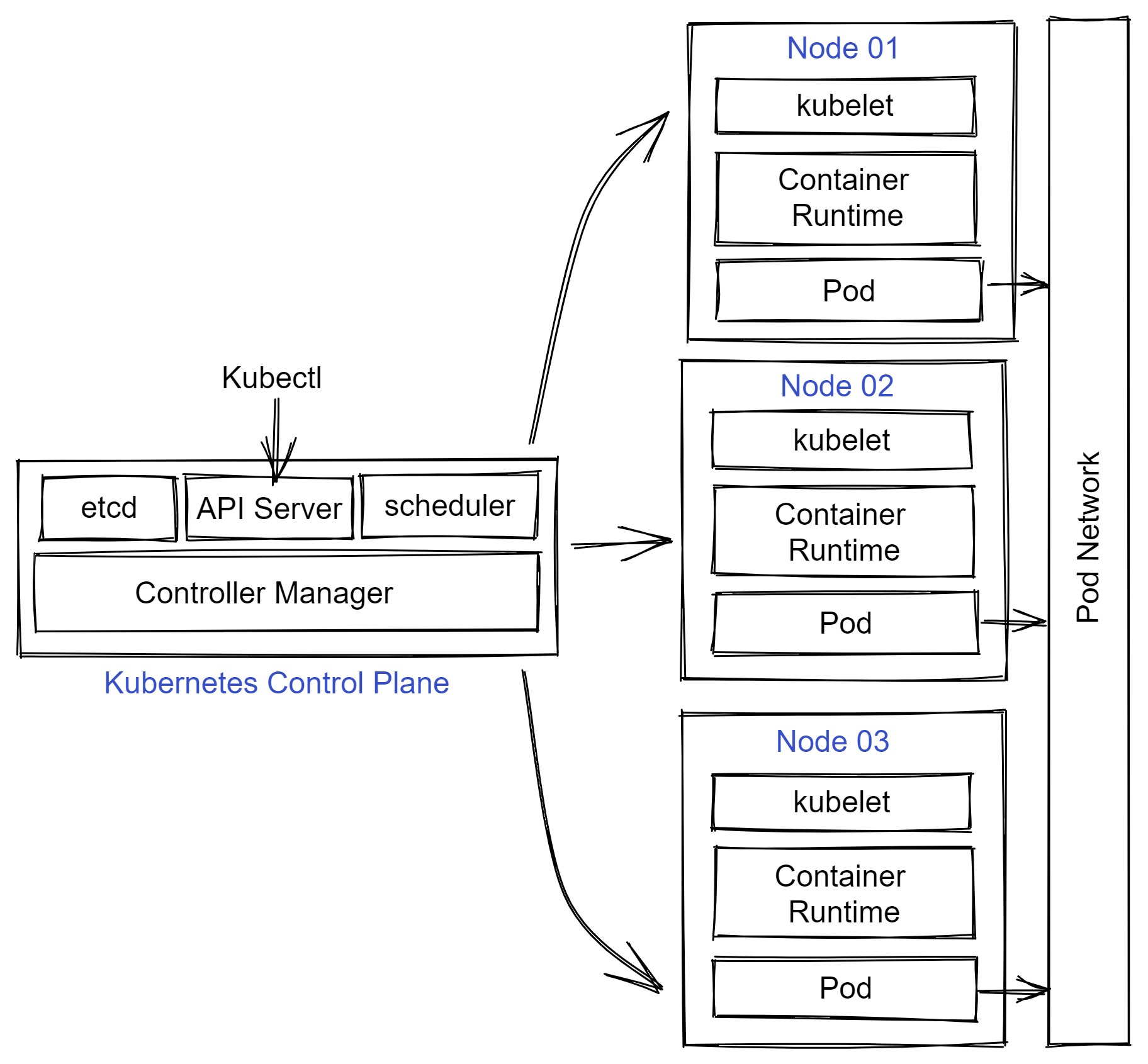
Many runtimes are supported within Kubernetes. The most popular ones include Docker (via cri-dockerd), containerd, and CRI-O. The choice of a runtime depends on several factors, such as performance, isolation needs, and security. We shall use containerd as the runtime for this virtual cluster.
Container Network Interface (CNI)
Kubernetes requires a CNI-compatible Pod network addon for Pods within the cluster to communicate with each other. We can choose from many open-source and commercial CNI plugins to implement the Pod network. Once again, we must consider factors such as ease of deployment, performance, security, and resource consumption to choose the Pod network addon correct for our Kubernetes cluster and the workload we plan to run.
For this article, we choose Calico as the pod network addon for the ease of deployment.
Preparing control plane and worker nodes
Each node in the Kubernetes cluster has the following components.
- A container runtime
- Kubectl - The command line interface to Kubernetes API
- Kubelet - Agent on each node that receives work from the scheduler
- Kubeadm - Tool to automate deployment and configuration of a Kubernetes cluster
Before going into this, we must ensure that nodes that will be a part of the Kubernetes cluster can communicate with each other and the firewall ports required for node-to-node communication are open.
The following network ports must be open for inbound TCP traffic on the control plane node.
- 6443
- 2379:2380
- 10250
- 10257
- 10259
- 179 (required for Calico)
On the worker nodes, we should configure to allow incoming TCP traffic on the following ports.
- 10250
- 30000:32767
On Ubuntu, we can use ufw command to perform this configuration.
|
|
To see the bridged traffic, we must disable swap and configure IPv4 forwarding and IP tables on each node. Before all this, ensure each node has the latest and greatest packages. We will need curl as well on the node to download certain packages.
|
|
We must disable swap on each node that will be a part of the Kubernetes cluster.
|
|
We must also check if the swap is listed in the /etc/fstab and either comment or remove the line.
Next, configure IPv4 forwarding and IP tables on each node.
|
|
Installing containerd
The next set of commands download the latest release of containerd from GitHub and configure it. We need to run this on each node.
|
|
Installing kubeadm, kubelet, and kubectl
These three tools are needed on each node.
|
|
The above commands download and install the three tools we need on each node. Once installed, we mark the packages as held so they don’t get automatically upgraded or removed.
Initialize Kubernetes cluster
Once the prerequisite configuration is complete, we can initialize the Kubernetes cluster using kubeadm init command.
|
|
This command starts a few preflight checks and the necessary Pods to start the Kubernetes control plane. At the end of successful execution, we will see output similar to what is shown here.
|
|
Before proceeding or clearing the screen output, copy the kubeadm join command. We need this to join the worker nodes to the Kubernetes cluster.
Prepare kubeconfig
Before installing the Pod network addon, we need to make sure we prepare the kubectl config file. kubeadm init command provides the necessary commands to do this.
|
|
Once this is done, verify if the Kubernetes control plane objects can be queried.
|
|
This command will show only the control plane node and be shown as NotReady. This is because the Pod network is not ready. We can now install the Pod network addon.
Installing Calico
Installing Calico is just two steps. First, we install the operator.
|
|
Next, we need to install the custom resources.
|
|
In this YAML, we must modify the spec.calicoNetwork.ipPools.cidr to match what we specified as the argument to --pod-network-cidr. Once this modification is complete, we can implement the custom resources.
|
|
We need to wait for the Calico Pods to transition to the Ready state before proceeding toward joining the worker nodes to the cluster.
|
|
Once all Calico pods in the calico-system namespace are online and ready, we can check if the control plane node is in a ready state or not using the kubectl get nodes command.
Finally, we can move on to joining all worker nodes in the cluster. we must run the command we copied from the kubeadm init command on each worker node.
|
|
Note: IP, token, and hash in the copied command will differ.
The node joining process takes a few minutes. We can run the watch kubectl get nodes command on the control plane node, wait until all nodes come online, and transition to the ready state.
|
|
We should also verify whether all control plane pods are online and ready.
|
|
This is it. We now have a four-node Kubernetes cluster that we can use for our learning, development, and production too!
Comments
Comments Require Consent
The comment system (Giscus) uses GitHub and may set authentication cookies. Enable comments to join the discussion.