The best way to understand OpenClaw is to try it. The safest way to do that is to run it inside a container.
In the first part of this series, we looked at what OpenClaw is, its architecture, and its features. In this hands-on part of the series, we will build and run OpenClaw as a container and verify the gateway’s health. Let us get started.
Building and running the OpenClaw container
I chose to run OpenClaw inside a container to ensure I can freely experiment with different features, including file system access. Before you can run OpenClaw in a container, you need to build the image from source. Let us start by preparing a few directories.
> When you open the dashboard in your browser, it will ask for a token. Use openclaw-secret-token to log in. Replace your_actual_key_here with your actual key from Google AI Studio or which ever provider you choose to use.
We will now need to seed the gateway’s initial configuration.
Create %USERPROFILE%\.openclaw\openclaw.json and paste the following JSON blob.
We are now ready to build the container image from the OpenClaw source code. We’ll build the container image locally, directly from the OpenClaw source repository.
1
2
3
4
5
6
7
8
9
# Clone the repositorygitclonehttps://github.com/openclaw/openclaw.git"$env:USERPROFILE\openclaw-source"Set-Location"$env:USERPROFILE\openclaw-source"# Build the Docker imagedockerbuild-topenclaw:local-fDockerfile.# Return to your home directorySet-Location"$env:USERPROFILE"
Building this image takes a while. On my local PC with 16GB of memory, it took close to 10 minutes. Once the image is ready, you can launch the container.
You can check the gateway’s health by running node dist/index.js gateway health inside the container.
1
2
3
PS C:\> docker exec openclaw node dist/index.js gateway health
Gateway Health
OK (31ms)
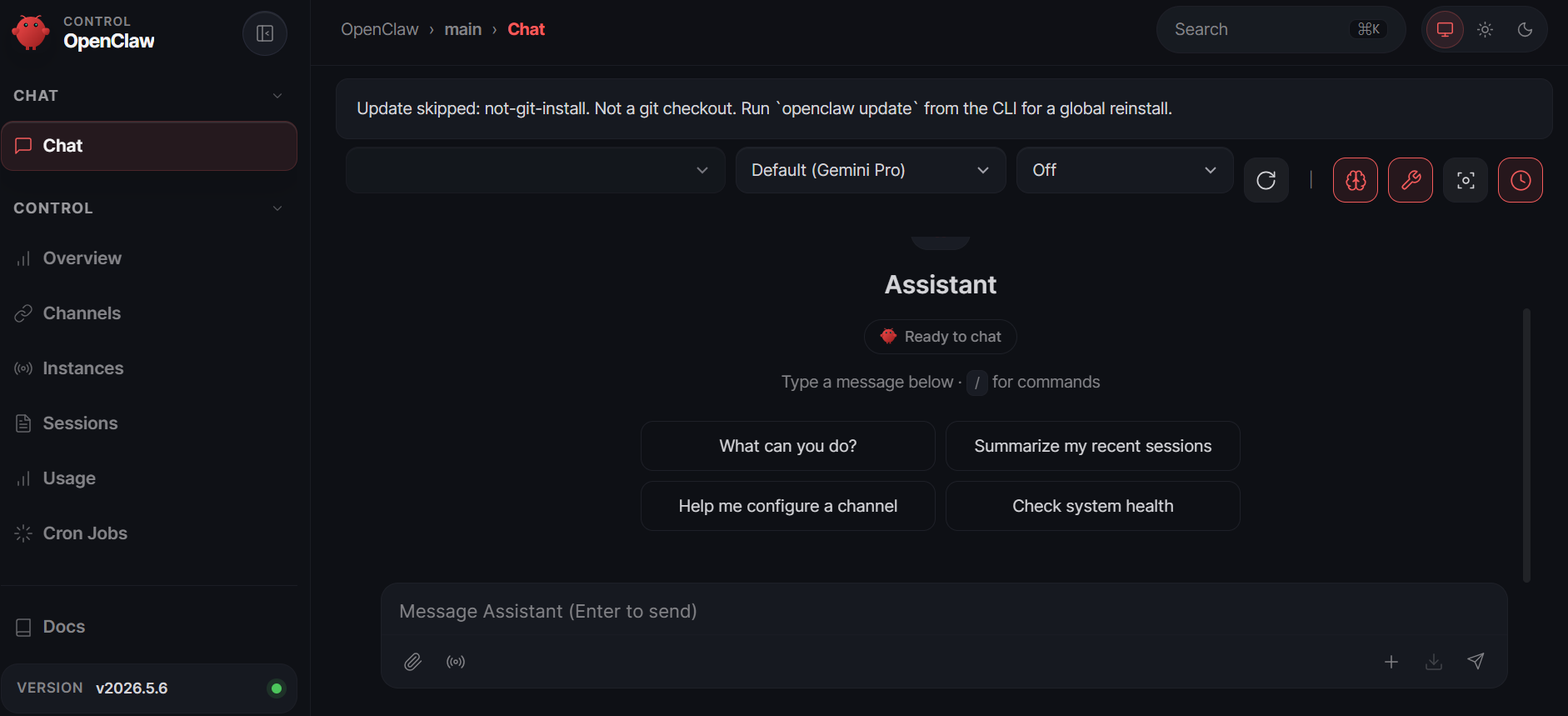
At this point, the gateway dashboard UI should be accessible at “http://127.0.0.1:18789/”. In the UI, enter the token from the .env file.
At this time, we have the OpenClaw gateway running in a container. Because the .openclaw directory is mounted as a volume, you can edit config files directly on Windows with any text editor. The changes are reflected inside the container instantly (OpenClaw watches for config changes and hot-reloads).
Here is a quick, handy tip. I have added a few custom functions to my PowerShell profile to access a few aspects of OpenClaw state.
Comments
Comments Require Consent
The comment system (Giscus) uses GitHub and may set authentication cookies. Enable comments to join the discussion.